
How do I use the Ads Manager on my phone?
On a phone the Ads Manager shows campaigns as cards with a summary on top. Some settings, columns, sorting and the order list need a desktop.
What the page looks like
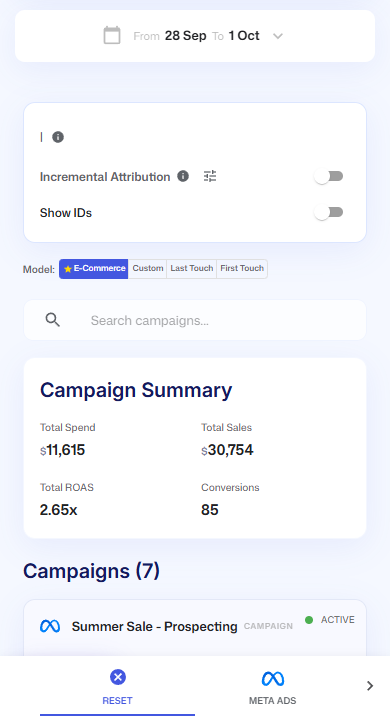
On a phone, the campaign table turns into a list of cards. From top to bottom you see:
- The date range button. It works the same as on desktop. See How do I change the date range?.
- A settings card with the current attribution model and window, the View-Through switch when Meta is connected, the Incremental Attribution switch with its sliders icon, and the Show IDs switch. Under them, next to Model:, are the buttons E-Commerce, Custom, Last Touch and First Touch. Attribution is how TrueROAS decides which ad gets credit for a sale.
- The Search campaigns... box.
- The Campaign Summary card with Total Spend, Total Sales, Total ROAS and Conversions.
- Campaigns with the number of campaigns, followed by one card for each campaign.
- Organic & Unassigned, with the sales that did not come from a campaign.
- The Export Campaign Data button, with the same Campaigns, Ad sets and Ads choice as on desktop.
The platform buttons Reset, Meta Ads, Google Ads, TikTok Ads, Pinterest Ads, Snapchat Ads, AppLovin (once connected) and Organic & Unassigned sit in a bar fixed to the bottom of the screen. The bar shows two buttons at a time. Swipe it, or tap the arrows at its ends, to see the others. Apart from AppLovin, the buttons show even for ad platforms you have not connected. Tapping the selected button again does not clear it, so tap Reset to see every platform again. The support chat button moves up so it sits above the bar.
Read a campaign card
Each card shows the campaign name, its ad platform, and its status as the ad platform names it, for example active or paused. The dot next to the status is green when the campaign is active, orange when it is paused and grey for any other status. Below that are four numbers: Spend, Sales, Conversions and ROAS. The smaller figure under Sales, Conversions and ROAS is what the ad platform itself reports. While the campaigns load, you see three grey placeholder cards.
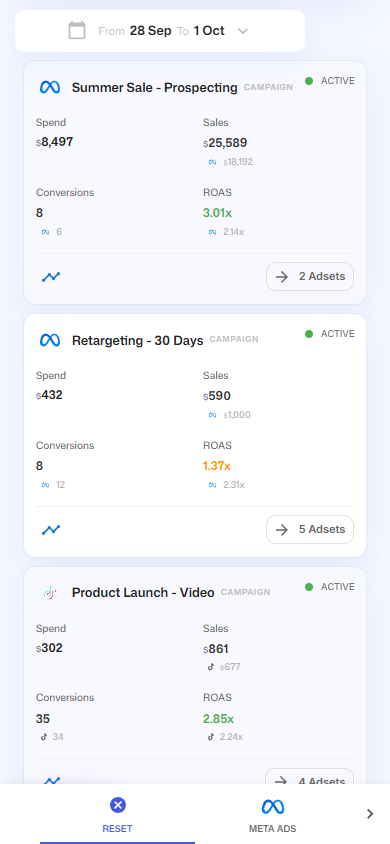
- Tap the button with the number of ad sets, for example 2 Adsets, to open a sheet with that campaign's ad sets. On AppLovin cards it counts creative sets instead, for example 2 Creative sets. Pinterest cards have no such button. See How do Google, TikTok, Pinterest and Snapchat campaigns differ in the Ads Manager?.
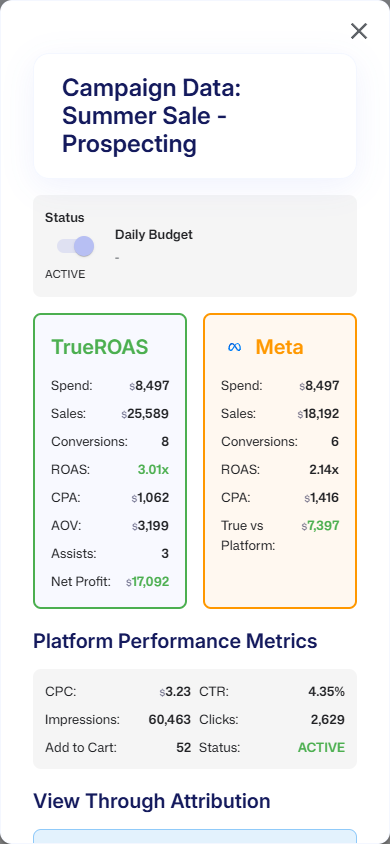
- Tap the card itself to open Campaign Data, a window with everything about that campaign: its status and daily budget, a TrueROAS block with Spend, Sales, Conversions, ROAS, CPA, AOV, Assists and Net Profit, a block with what the ad platform reports, Platform Performance Metrics such as CPC, CTR and impressions, and, for Meta campaigns, View Through Attribution. Tap Close to go back.
How to read the numbers in Campaign Data:
- Net Profit is Sales minus Spend. It leaves out your order costs, so it can be higher than Profit in the desktop table.
- In the ad platform's block, CPA is spend divided by the purchases the ad platform reports. True vs Platform is the TrueROAS Sales minus the Sales the ad platform reports, green at 0 or more and red below 0.
- Platform Performance Metrics only shows a line when it has a value, so the lines differ from campaign to campaign.
- With View-Through on, the card and the TrueROAS block include the view-through sales and conversions Meta reports. See What does the View-Through switch do?.
Open ad sets and ads
The sheet that opens from a campaign card is titled with the campaign name and Adsets, or Creative sets for AppLovin. It lists every ad set and every ad, including paused ones without spend or sales that the desktop table hides by default.
- Each ad set card shows Spend, Sales and ROAS. Tap it to open Adset Data, with the ad set's Status, Daily Budget, a TrueROAS Data block and a Platform Data block.
- Tap the button with the number of ads, for example 3 Ads, to list the ads under the ad set card, below a heading with the number of ads and the ad set's name. The same tap also opens Adset Data. Tap Close to see the ads.
- Each ad card shows Spend, Revenue and Conv. Tap it to open Ad Data, with the ad's Status, TrueROAS Data and Platform Data.
Organic & Unassigned on a phone
The cards under Organic & Unassigned show Revenue, Conversions and Assists. They cannot be tapped, so a bundle such as Email (3) stays closed on a phone. What the sources mean is explained in What is Organic & Unassigned and what do its rows mean?.
Tapping the Organic & Unassigned heading hides the whole section, heading included. Reload the page to see it again.
What needs a desktop
These are not available on a phone:
- The gear icon and its Ads Manager Settings panel. That means the attribution window, Campaign Auto-Filters, the Meta Campaign Name Filter and Hide Draft & In-Store (POS) Orders cannot be changed from the Ads Manager on mobile. You can still reach them under General Settings > Store Settings.
- Customize Columns. The cards always show the same numbers.
- Sorting. Cards cannot be reordered.
- The order list and customer journey behind a number. The route icon on a card does not open them on a phone. See How do I see the orders and customer journey behind a campaign?.
- The AI button for AI Insights.
- The Recording since bar.
Good to know
- Tablets get the desktop table. The card layout is for phone-sized screens.
- Your date range, attribution model, Incremental Attribution, View-Through and Show IDs settings are the same on every device, because they are saved to your login or to the store.
- The ROAS colour on a card does not follow your break-even ROAS. See What do the colours and the small numbers under a value mean?.
- The search box and the platform bar filter the cards the same way they filter the table. See How do I search campaigns, pick a platform and sort the table?.
- The card layout cannot be switched to the desktop table on a phone, other than by using a wider screen.