
How do I change the date range?
Pick a preset or your own dates from the button in the top right corner, where closing the picker applies them and only Cancel keeps the old dates.
Pick a preset or your own dates
- Click the date range button in the top right corner of the page. It shows the current period as From and To dates, or a single date when both are the same.
- Choose a preset: Today, Yesterday, Last 3 Days, Last 7 Days, Last 14 Days, Last 30 Days, Last 60 Days or Last 90 Days.
- Or click a start day and then an end day on the calendar to set your own range. Days in the future cannot be picked.
- Click Update to apply the new dates. Click Cancel to keep the old ones.
Closing the picker by clicking outside it or pressing Esc also applies the dates you picked; only Cancel keeps the old ones. Cancel turns red once the dates you picked differ from your current ones. While the new period loads, the button shows a spinner.
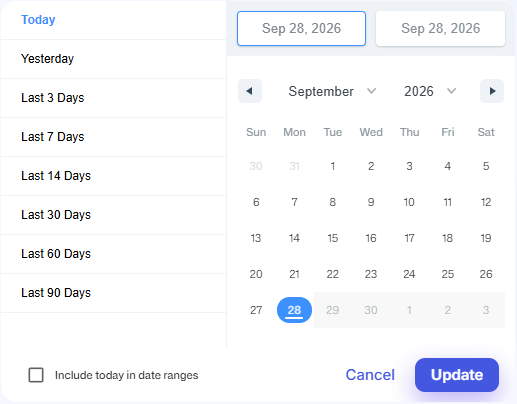
Include today or not
Tick Include today in date ranges at the bottom of the picker to make the Last ... Days presets end today instead of yesterday. They keep the same first day, so Last 7 Days then covers 8 days: the 7 days before today, plus today. Today is still in progress, so leaving it unticked keeps the numbers comparable from day to day.
Note: This tick box is saved to your login the moment you change it, without clicking Update. The dates themselves are applied when you click Update or close the picker.
The recording bar
Under the date range button, the Recording since bar shows the date TrueROAS started tracking this store and a data quality percentage. Hover over it for the details; 100% needs at least 3 days of tracking. Days before that date were not tracked by TrueROAS. The bar is hidden on mobile and while the page is scrolled down.
If you pick a range that starts on or before the day tracking began, a warning such as Tracking started on Sep 1, 2026. For complete data, select dates from Sep 2, 2026 or later. appears as soon as you pick the dates, before you click Update. The dates are still applied.
On the Dashboard
The Dashboard has the same date range button in its top right corner, without the Recording since bar. On desktop, once you scroll down, the button stays pinned to the top right corner of the screen, and it moves left to make room when the Trew panel is open. How it behaves on a phone is explained in How do I use the Dashboard on my phone?.
The spinner on the button waits for different things on the two pages. On the Dashboard it keeps turning until your orders and the numbers from your connected ad platforms and Klaviyo have loaded. In the Ads Manager it stops once your orders and your Meta, Google Ads and TikTok campaigns have loaded, so Pinterest, Snapchat and AppLovin campaigns can still be loading.
Good to know
- The date range is saved to your login and carries to the other pages, so the Dashboard shows the same period. How long a range you pick is kept is explained in Why are my newest orders or ad spend not showing yet?.
- Other people on the store keep their own date range.
- Dates follow your store's time zone. To check or change it, see Which currency and time zone do my numbers use?.
- The presets count days by the date on your computer or phone. If your device is set to a different time zone from your store, a preset can be one day earlier or later than your store's dates for part of the day.
- The date range and the attribution window are different things. Attribution is how TrueROAS decides which ad gets credit for a sale. The date range picks which days of sales and spend you see; the window decides how far back TrueROAS looks before each sale. See How do I change the attribution model and attribution window?.
- If your browser shows the message Error setting date., your new dates may not have been saved. Reload the page and pick them again.
- You cannot pick a day in the future, and the Ads Manager does not show a second period next to the current one for comparison.