
DocsAds Manager
How do Campaign Auto-Filters work?
Keep or hide campaigns by keywords in their names, saved to your login and applied whenever you open the Ads Manager. Team members start from the owner's list.
What they do
Campaign Auto-Filters keep or hide campaigns in the Ads Manager table based on words in the campaign name. Set them once and they apply every time you open the page, so you do not have to search again.
Add a filter
The gear panel is desktop only.
- Click the gear icon above the table (tooltip Attribution and filtering settings). The Ads Manager Settings panel opens on the right.
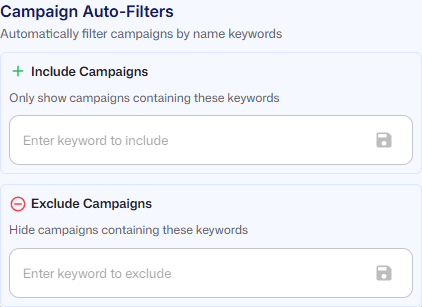
- Scroll down to Campaign Auto-Filters (Automatically filter campaigns by name keywords).
- To keep only some campaigns, type a word in the Include Campaigns box (placeholder Enter keyword to include) and press Enter or click the save icon. You will see Inclusion filter added.
- To hide campaigns, type a word in the Exclude Campaigns box (placeholder Enter keyword to exclude) and press Enter or click the save icon. You will see Exclusion filter added.
- Each keyword becomes a chip under its box. Click the x on a chip to remove it. You will see Filter removed.
The table updates right away. If a keyword cannot be saved, you see Error saving filter. The same Campaign Auto-Filters section is also under General Settings > Store Settings > Reporting Settings.
How keywords match
- A keyword matches when the campaign name contains it anywhere. Capital letters do not matter; keywords are saved in lower case.
- With include keywords, a campaign stays in the table when its name contains any one of them.
- A campaign is hidden when its name contains any one of the exclude keywords.
- Exclude wins. A campaign that matches both an include keyword and an exclude keyword is hidden.
Example: include summer, exclude test. Summer Sale is shown, Summer TEST is hidden, and Winter Sale is hidden because it contains no include keyword.
Good to know
- Keywords you add are saved to your login for this store. Team members who have not added any keywords of their own use the store owner's list (admins always start from their own list), and a new member gets a copy of the inviter's list when they accept an invite. As soon as a member adds or removes a keyword, their own list is used instead of the owner's.
- Keywords match campaign names only, not ad set or ad names.
- They do not touch the Organic & Unassigned rows or the Dashboard. To filter the Dashboard as well, use the Meta Campaign Name Filter. See What is the difference between the Meta Campaign Name Filter and Campaign Auto-Filters?.
- The numbers in the totals row at the bottom of the table only add up the campaigns that stay visible, but the campaign count shown next to them counts every campaign that was loaded.
- The search box and the platform buttons work on top of your filters. See How do I search campaigns, pick a platform and sort the table?.
- Keywords are plain text. Wildcards and patterns are not supported, and a chip cannot be edited; remove it and add a new one.