
What do the colours and the small numbers under a value mean?
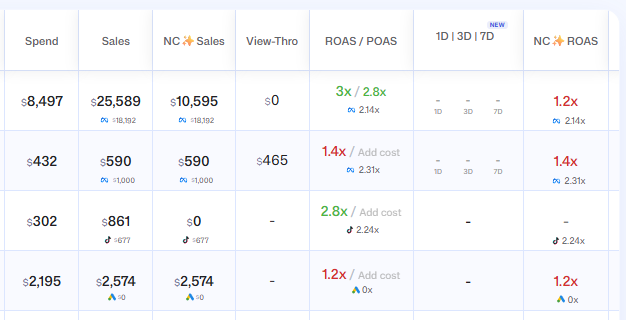
ROAS turns green, orange or red against your break-even ROAS, and the small figure under a value is what the ad platform itself reports.
ROAS colours
The ROAS number in ROAS / POAS, NC ROAS and 1D | 3D | 7D is coloured against your break-even ROAS. That is the ROAS at which an ad pays for itself after your costs.
- Green: 10% or more above your break-even ROAS.
- Orange: within 10% of it, above or below.
- Red: more than 10% below it.
- Grey: there is no ROAS to show, for example no sales yet.
In 1D | 3D | 7D, a window with spend but no sales shows a red 0x. Only a window shown as - is grey there.
Example with a break-even ROAS of 2: a campaign is green from 2.2, red under 1.8, and orange in between.
Until you save your own, the Ads Manager uses a break-even ROAS of 1.6, for these colours only.
Set your break-even ROAS
You set your break-even ROAS in Cost Manager, where it can also stand in for your costs in profit numbers. See How do I set my break-even ROAS and use it instead of product costs?.
POAS and profit colours
- The POAS number after the slash in ROAS / POAS is green at 1 or above and red below 1. At 1 the sales exactly covered your order costs plus the ad spend.
- The Profit cell has a green background when the row made money and a red background when it lost money or came out at exactly 0.
- The Discrepancy number is green when TrueROAS tracked more sales than the ad platform reports and red when it tracked less.
The small number under a value
Under Sales, Conversion, ROAS / POAS, NC Sales and NC ROAS you see a smaller figure with the logo of the ad platform. That is what the platform itself reports for the same row, so you can compare it with what TrueROAS tracked without opening the platform.
On ad set and ad rows, hover over the small figure under Sales, NC Sales or Conversion to see Reported By and the platform name. On a campaign row, hovering over the figure under Conversion shows Conversions By and the platform name, and clicking it opens the conversion details.
Under ROAS / POAS the small figure is the platform's own ROAS. What the figures under Sales and Conversion count is different on each ad platform. See How do Google, TikTok, Pinterest and Snapchat campaigns differ in the Ads Manager?.
Ad platforms do not report new customers separately, so the figure under NC Sales and NC ROAS is the platform's number for all customers.
The difference between the two Sales figures is also available as its own column, Discrepancy. See What do the columns in the Ads Manager mean?.
Add cost and est.
POAS, COGS and Profit depend on what your products cost you.
- Add cost appears in place of a number when a row has sales but TrueROAS has no costs for those orders and nothing to estimate them from. Click it to open the Cost Manager and add them.
- est. appears next to a POAS or COGS that is estimated instead of exact. Hover over it to see what the estimate is based on, or click it to open the Cost Manager.
Which costs TrueROAS uses, in which order, and what each hover text means is explained in How do I set my break-even ROAS and use it instead of product costs?. For exact numbers, see How do I add my product costs in Cost Manager?.
Good to know
- The break-even ROAS is saved for the whole store. Everyone on the store sees the same colours.
- On mobile the campaign cards use fixed steps instead of your break-even ROAS: green from a ROAS of 2, orange from 1, red below 1.
- The Sales and Conversion cells flash green when you turn on View-Through and red when you turn it off, to show which numbers changed. See What does the View-Through switch do?.
- The ROAS in the Summary row is always green. See What does the Summary row at the bottom of the table add up?.
- Rows under Organic & Unassigned have no spend, so they have no ROAS and no colour.
- You cannot pick your own colours.