
How do I change the attribution model and attribution window?
The store owner or an admin can switch the attribution model with the toolbar buttons and set the window in the gear panel for the whole store.
What the two terms mean
Attribution is how TrueROAS decides which ad gets credit for a sale.
- The attribution model is the rule for giving that credit. E-Commerce lets the TrueROAS AI combine the most effective models for online stores and is the recommended choice. Last Touch credits the last ad clicked before the purchase. First Touch credits the first ad clicked. Custom is a model set up for your store. How each one picks the winner is explained in Which attribution model should I use and how does each one give credit?.
- The attribution window is how far back in time TrueROAS looks at visits and activity before a purchase. With a 28 day window, an ad clicked 20 days before the sale can get credit; an ad clicked 40 days before cannot.
The toolbar shows the current pair, for example E Commerce | 28 Days, with an info icon next to it that reads The attribution model is the definition of what is counted as a purchase, and attribution window is how far back in time the model looks at visits and activity. On desktop, with Custom picked, the toolbar usually shows your store's web address instead of the model name.
Change the model
On desktop, click one of the model buttons in the toolbar above the table: E-Commerce (marked with a star), Custom, Last Touch or First Touch. Hover over a button to read what the model does, for example Attributes conversion to the last ad clicked before purchase on Last Touch. On mobile the same buttons sit under the settings card, next to Model:. The buttons are greyed out while the table loads, and a small spinner shows while the change is saved. You will see a message such as Last Touch model active, or E Commerce model active for E-Commerce, when the change is saved. If it fails you see Something went wrong.

You can also change it in the gear panel:
- Click the gear icon (tooltip Attribution and filtering settings). The Ads Manager Settings panel (Attribution, filters and display options) opens on the right.
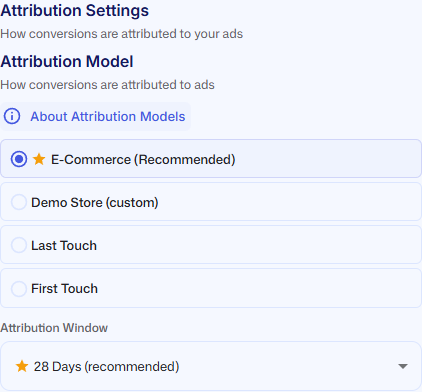
- Under Attribution Settings (How conversions are attributed to your ads), pick a model in the Attribution Model list. Here the models are named E-Commerce (Recommended), your store's name followed by (custom), Last Touch and First Touch. About Attribution Models opens a short explanation of each one.
- If you pick First Touch or Last Touch here, the warning Are you sure? This model can be misleading! appears. Click I understand the risks to continue, or Go back to keep the current model.
The toolbar buttons do not show this warning.
Change the window
In the Ads Manager the window can only be changed in the gear panel. There is no toolbar button for it.
- Click the gear icon (tooltip Attribution and filtering settings).
- Under Attribution Settings, open the Attribution Window dropdown.
- Pick 7 Days, 14 Days, 28 Days (recommended), 64 Days, 128 Days, 256 Days or 512 Days.
- A window shorter than 28 days shows Hold on! This isn't recommended. A longer one shows Considering a longer window? Read the points, then click I understand the risks (or I understand, let's do it! for a longer window) to save, or Go back.
- You will see Saved attribution window.
Warning: A shorter window misses sales from customers who take longer to buy, so ROAS looks lower and you may cut ads that build value over time. 28 days is the recommended setting.
Good to know
- The model and the window apply to the whole store. Everyone on the store sees the new numbers, on the Dashboard as well as in the Ads Manager.
- Only the store owner or an admin can change them. Everyone else sees a message saying so, and nothing is saved. See What can team members see and change on the Dashboard and Ads Manager?.
- The gear panel is desktop only. The model buttons also work on mobile, but the window cannot be changed on mobile from the Ads Manager. The same options are under General Settings > Store Settings, behind Reporting Settings > Manage, in the Attribution Model section (How conversions are attributed to ads), which also holds the Attribution Window dropdown.
- Changing the model or the window changes which sales get credit. It does not change your date range or your Campaign Auto-Filters.
- To give your Google branded search campaigns less credit under every model, see How do I mark my Google branded search campaigns?.
- The Incremental Attribution and View-Through switches in the toolbar are separate from the model and are saved to your login, not to the store.