
How do I set up Incremental Attribution?
Turn on the Incremental Attribution switch above the campaign table, then tune Channel Caps and Donor Sources yourself or with the AI assistant.
Turn it on
-
Open the Ads Manager.
-
Above the campaign table, turn on the Incremental Attribution switch. On mobile it is in the settings card at the top.

The switch, with the sliders icon that opens the settings. -
The numbers update. A green label next to the switch, for example +$2,800 impact, shows how much sales moved from other sources to your ads in the current date range.
While the table is loading, the switch is greyed out, and if it is on, a spinner shows next to it until the numbers are ready. Hover over the info icon next to the switch for a short explanation that starts with Redistributes revenue from non-paid sources (branded search, direct, payment redirects) to the ads that drove awareness.
Turn the switch off to go back to the click-based numbers. For what the switch does to your numbers, see What is Incremental Attribution and how does it work?.
Open the settings
Click the sliders icon next to the switch (tooltip Configure sources and percentages). The Incremental Attribution window opens with the line Configure which sources redistribute credit to your ads. You can open it while the switch is off.
The window has two parts: Channel Caps and Donor Sources.
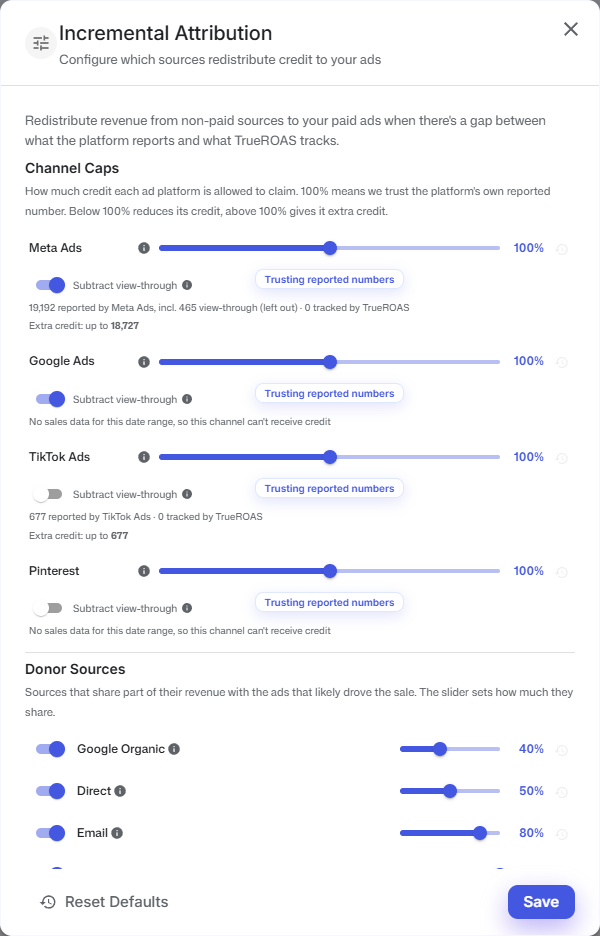
Channel Caps
One row each for Meta Ads, Google Ads, TikTok Ads and Pinterest. The cap sets how much credit a platform is allowed to claim, compared with what the platform reports itself.
- Drag the slider between 50% and 150%, in steps of 5%. The label under it tells you what the value means:
- 100%: Trusting reported numbers. The platform never ends up with more sales than it reports.
- Below 100%: Correcting over-attribution. Use this when you think the platform reports too much.
- Above 100%: Crediting missed sales. Use this when you know the platform drives more than it reports.
- Subtract view-through leaves out the sales the platform counts from people who saw an ad but never clicked, so the platform only receives credit for click-based gaps. It starts on for Meta Ads and Google Ads and off for TikTok Ads and Pinterest.
- The reset icon puts that platform back to its starting values. Its tooltip names the platform, for example Reset Meta Ads to default, and it is greyed out while the platform is at its starting values.
Under each platform you see where it stands for your date range:
- What the platform reports and what TrueROAS tracked, for example 19,000 reported by Meta Ads, incl. 465 view-through (left out) · 15,000 tracked by TrueROAS.
- The room it has: Extra credit: up to ... after you save while you have unsaved changes, and Extra credit: ... used of ... once your settings are saved. When there is no result with your saved settings to show, for example while the switch is off, it reads Extra credit: up to ... on its own. Hover over this line to see how the amount is worked out: what the platform reports, without view-through if you leave it out, times the cap, minus what TrueROAS already tracks.
- No room for extra credit at this cap when TrueROAS already tracked as much as the cap allows.
- No sales data for this date range, so this channel can't receive credit when the platform is not connected or reported no sales.
Donor Sources
One row for each source that can share its sales with your ads: Google Organic, Direct, Email, Facebook (organic), Instagram (organic), Bing (organic), Snapchat (organic), Other Sources, Branded Search, Google Ads (untracked), Meta Ads (untracked) and Payment Processors.
- The switch on a row decides whether that source shares anything at all.
- The slider sets how much it shares, from 0% to 100% in steps of 5%. While you drag, a label reads Keeps all credit, Shares a little with ads, Shares about half with ads, Shares most with ads or Gives ads full credit.
- Hover over the info icon on a row to read what the source contains.
- The reset icon puts that source back to its starting value, and is greyed out while the source is already there.
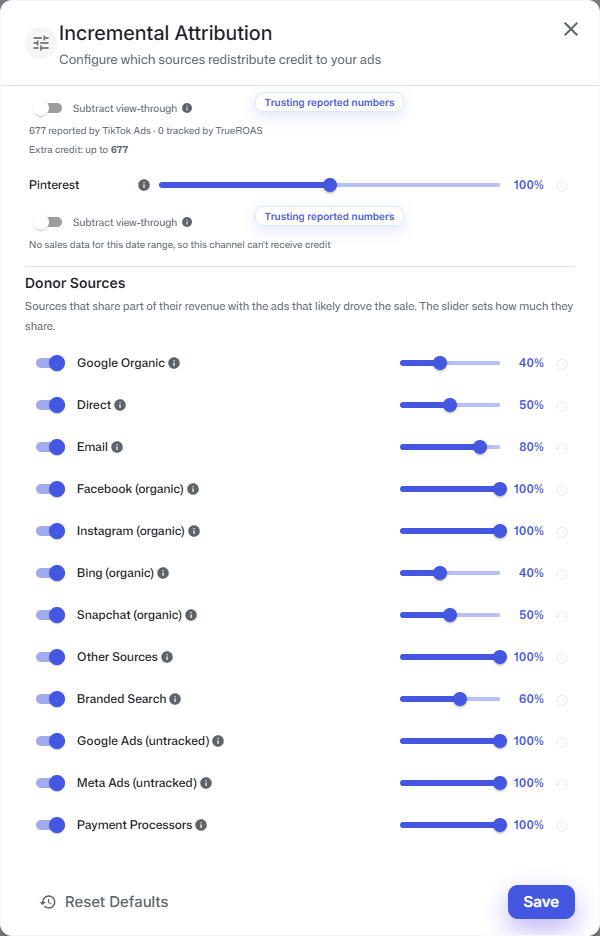
The starting percentage of each source is listed in What is Incremental Attribution and how does it work?.
Branded Search uses the Google campaigns you marked as branded. To mark them, see How do I mark my Google branded search campaigns?.
Save or start over
- Click Save to apply your changes. The window closes and the table reloads with the new split. There is no confirmation message.
- Click Reset Defaults to put every cap and every source back to its starting value. Nothing is saved until you click Save.
- Closing the window without clicking Save throws your changes away.
Let the AI suggest settings
At the top of the window, The best way to set this up: let AI do it with you has a Tune with AI button.
- Click Tune with AI. A chat named Settings Manager opens.
- Answer its questions about your store, for example whether you run influencer or TV campaigns and how much of your direct traffic is repeat customers.
- When it has enough to go on, it shows a Suggested settings card with the changes it proposes and why. Click a change to leave it out.
- Click Apply & Save to use them, or Dismiss to skip them.
Changes applied from the chat are saved right away. You do not need to click Save afterwards.
Good to know
- The switch and all settings in this window are saved to your login. Other people on the store keep their own.
- The same settings drive the Dashboard numbers for your login.
- You can also open this window on the Dashboard, with the sliders icon next to its Incremental Attribution switch. The amounts in the window follow your date range and the numbers of the page you open it on, and in the Ads Manager they are shown without a currency sign. Change the date range first if you want to tune for a different period.
- Only Meta Ads, Google Ads, TikTok Ads and Pinterest can receive credit. You cannot add another platform or choose by hand which platform gets a source's sales; the split is worked out from spend and the gap between reported and tracked sales.
- You cannot set different percentages for different date ranges or for single campaigns.