
How do I pause an ad or change a daily budget from the Ads Manager?
For Meta you can switch a campaign, ad set or ad on and off and edit a daily budget right in the table, while other ad platforms are read only.
What you can change
For Meta campaigns you can do two things without leaving TrueROAS:
- Turn a campaign, ad set or ad on or off.
- Change the daily budget of a campaign or ad set.
Both act on your Meta ad account straight away, the same as doing it inside Meta.
Campaigns from Google Ads, TikTok Ads, Pinterest Ads and Snapchat Ads are read only here. Their switches are greyed out, but still show whether the item is switched on in that ad platform. For what else is different per ad platform, see How do Google, TikTok, Pinterest and Snapchat campaigns differ in the Ads Manager?.
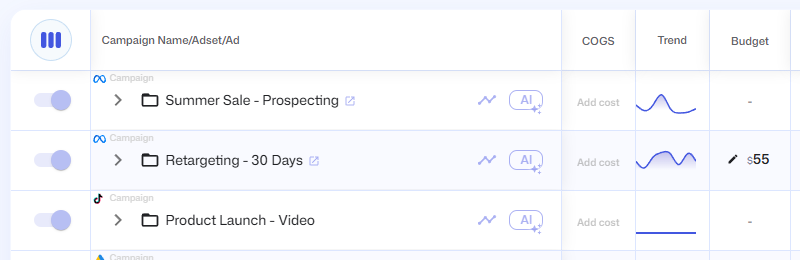
Turn a campaign, ad set or ad on or off
- On desktop, find the row in the campaign table. Use the arrow next to a campaign name to reach its ad sets and ads.
- Click the switch at the start of the row. A switch that is on means the item is active in Meta.
- The item is paused or activated in Meta right away. The switch moves when Meta confirms the change.
The switch only shows the row's own setting, so an ad set can show on while its campaign is paused. While a campaign or ad set is switching, parts of the campaign row show grey placeholders and its ad sets are hidden until Meta answers.
There is no confirmation step and no message when it works.
If the item's status in Meta is anything other than active or paused, the switch does not change it and you see a message starting with Can't toggle the ad while it's in, followed by the status as Meta names it. The message says the ad on campaign and ad set rows too. If Meta refuses the change you see Something went wrong toggling the campaign, Something went wrong toggling the adset or Something went wrong toggling the ad, depending on the row.
Warning: Turning off a campaign stops its ads from running and spending. Check that you are on the right row before you click.
Change a daily budget
- Add the Budget column if it is not in your table. See How do I choose and reorder the columns?.
- On a Meta campaign or ad set that has a daily budget, click the amount with the pencil icon.
- A window opens with Set daily ad budget for and the name. Type the new amount in the Daily budget field. The amount is in the currency of your ad account.
- Click Update. The button reads loading... while it saves, then you see Successfully updated budget. Click Cancel to leave the budget as it is.
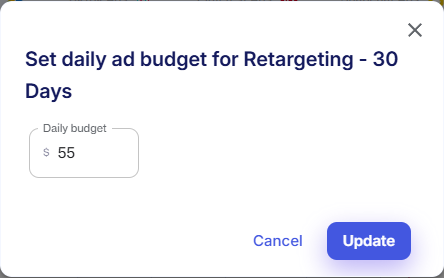
A - in the Budget column means there is no daily budget on that level. Meta lets you set the budget either on the campaign or on its ad sets, so look one level up or down. Ads never have their own budget.
Clicking the budget of a campaign from another ad platform shows Editing budget not available. On desktop, Snapchat ad squads show the pencil and open the window as well, but only Meta budgets can be changed from TrueROAS.
Open the same item in Meta
Next to the name of a Meta campaign, ad set or ad there is a small open icon (tooltip Open in Meta Ads Manager). It opens Meta Ads Manager in a new tab: for a campaign, the list of its ad sets; for an ad set, the list of its ads; for an ad, the ad ready to edit. Use it for everything you cannot change from TrueROAS.
See or undo a change
The switches and budget changes you make in the Ads Manager, on desktop or on a phone, are also listed in the Changes panel of Trew Media Buyer, marked Ads Manager page.
- Click Trew Media Buyer in the left menu.
- Click Changes in the panel on the right.
- Find the change. It reads, for example, Paused campaign, Turned on ad set or Budget campaign, followed by the name, and for a budget the old and the new amount.
- Click Undo to set it back to how it was. The change is then marked Undone.
A change that did not go through is marked Failed, with the error under it, and cannot be undone. Only the store owner or an admin can undo a change. For the rest of the panel, see What is Trew Media Buyer and how do I use it?.
Good to know
- These changes use the Meta account connected to the store, and they are made for real. Anyone on the store who can open the Ads Manager can make them, so agree with your team who does. See What can team members see and change on the Dashboard and Ads Manager?.
- Meta only. You cannot pause or edit budgets for Google, TikTok, Pinterest or Snapchat campaigns here.
- You cannot rename a campaign, change a lifetime budget, a bid, a schedule or the targeting, or create or delete anything from the Ads Manager.
- The Budget cell rounds the budget to a whole number and follows the currency rules in How do Google, TikTok, Pinterest and Snapchat campaigns differ in the Ads Manager?, so it can differ from the amount in the window. After you save a budget, the cell shows the new amount in your ad account's currency until the page is reloaded.
- The Budget total in the Summary row only counts active campaigns and active ad sets. See What does the Summary row at the bottom of the table add up?.
- On a phone, tap a campaign, ad set or ad card to open its details, which hold the same switch and, for campaigns and ad sets, the daily budget. Only campaign cards have the icon that opens Meta. See How do I use the Ads Manager on my phone?.
- The Changes panel only shows on a wide screen, such as a computer, so you cannot see or undo these changes on a phone.