
What is the Ads Manager and what can I do there?
A tour of the Ads Manager page, from the date range and the settings toolbar to the campaign table, Organic & Unassigned and the export button.
What the Ads Manager shows
The Ads Manager is the page where you see every campaign from your connected ad platforms in one table, together with the sales TrueROAS tracked for each of them. Open it from Ads Manager in the left menu.
Attribution is how TrueROAS decides which ad gets credit for a sale. The Ads Manager shows spend, clicks and impressions as the ad platform reports them, next to the sales TrueROAS credits to each campaign using your store's attribution model and window.
The page from top to bottom
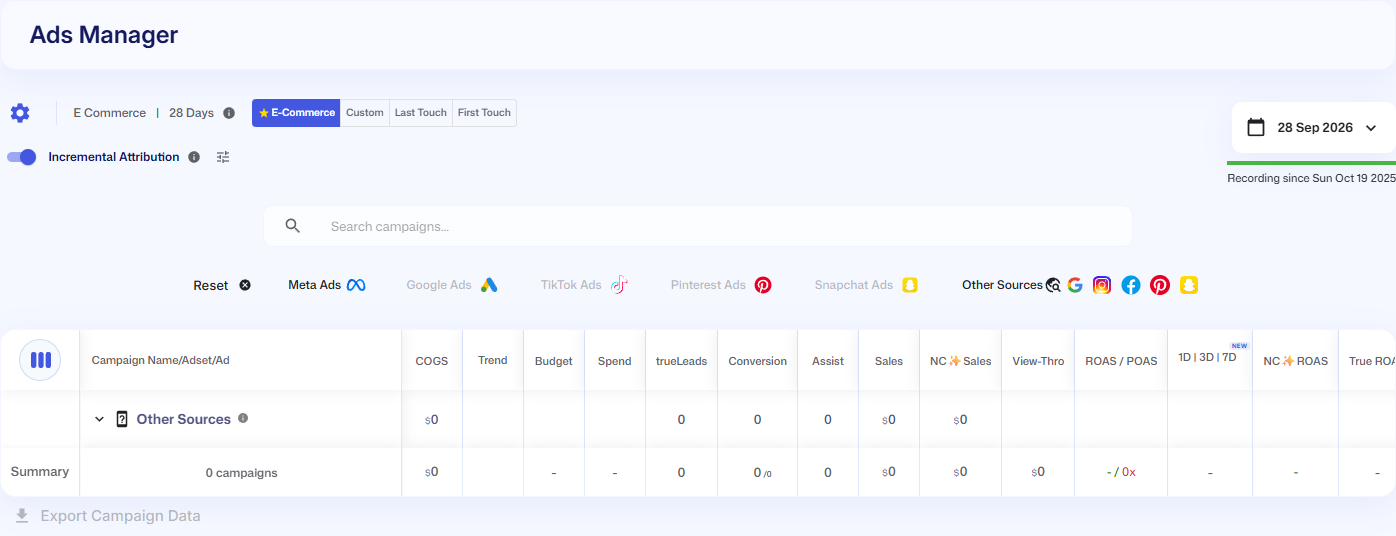
The setup card from the Dashboard, or the Import Historical Orders card for a new Shopify store, can show at the top of the page. Before you add a store, the table lists sample campaigns. See What does the setup card at the top of the Dashboard mean? and How do I bring in orders from before I installed TrueROAS?.
- The date range button in the top right corner. Every number on the page uses this period. See How do I change the date range?.
- The settings toolbar (desktop only). From left to right: the gear icon (tooltip Attribution and filtering settings), which opens the Ads Manager Settings panel; the current model and window, for example E Commerce | 28 Days; and the model buttons E-Commerce, Custom, Last Touch and First Touch. See How do I change the attribution model and attribution window?.
- Under the toolbar, the Incremental Attribution switch with its sliders icon (tooltip Configure sources and percentages), and, when Meta is connected, the View-Through switch. Incremental Attribution moves revenue from non-paid sources such as branded search, direct visits and payment redirects to the ads that drove awareness. View-Through counts a sale when someone saw a Meta ad, never clicked it, and then bought. See What is Incremental Attribution and how does it work? and What does the View-Through switch do?.
- The Search campaigns... box and the platform buttons Reset, Meta Ads, Google Ads, TikTok Ads, Pinterest Ads, Snapchat Ads, AppLovin (once connected) and Organic & Unassigned. See How do I search campaigns, pick a platform and sort the table?.
- The campaign table. Each row is a campaign. Click the arrow next to a campaign name to open its ad sets, and the arrow next to an ad set to open its ads. Click a column header to sort. The column icon in the top left corner of the table (tooltip Customize Columns) lets you pick the columns. See How do I choose and reorder the columns? and What do the columns in the Ads Manager mean?. Click a number such as Sales to see the orders behind it, as described in How do I see the orders and customer journey behind a campaign?. For Meta you can also pause ads and edit budgets from the table. See How do I pause an ad or change a daily budget from the Ads Manager?.
- The Organic & Unassigned row (tooltip Sales we could not tie to a campaign in this table, such as email, search, direct visits and ads without tracking.). Under it are the sales that did not come from a campaign in the table, such as email, direct visits or a search engine. See What is Organic & Unassigned and what do its rows mean?.
- The Summary row pinned to the bottom of the table, which adds up the campaigns currently shown and Organic & Unassigned. See What does the Summary row at the bottom of the table add up?.
- The Export Campaign Data button under the table. It downloads a CSV file for the current date range, with one row per campaign, ad set or ad, depending on the level you pick. See How do I export my campaign data to a CSV file?.
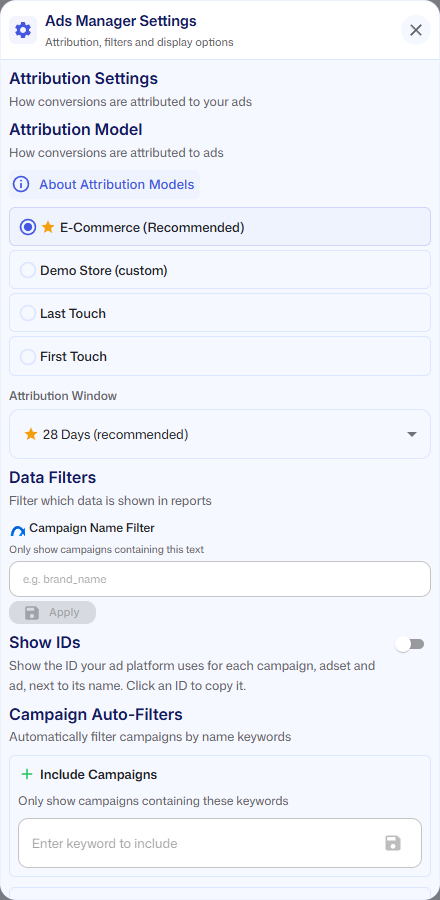
The gear icon also holds the settings covered in How do Campaign Auto-Filters work?, What is the difference between the Meta Campaign Name Filter and Campaign Auto-Filters? and What do Show IDs and Hide Draft & In-Store (POS) Orders do?.
Campaign, ad set and ad rows
- A small grey label above each name says what the row is, for example Campaign, Adset or Meta Ad. A small logo of the ad platform sits in the top left corner of each campaign name.
- Besides the arrow, you can click the icon or the name of a campaign or ad set to open the next level. The arrow next to a campaign is greyed out when the campaign has no ad sets to open.
- Long names are cut off. Hover over a name for two seconds to read it in full.
- Ad rows show a small picture of the ad when the ad platform provides one. Clicking an ad does not open a preview.
- An ad set with many ads shows five of them at first, and more appear as you scroll down the table.
What each ad platform shows in these rows, such as what it calls an ad set, is explained in How do Google, TikTok, Pinterest and Snapchat campaigns differ in the Ads Manager?.
On mobile
On a phone the table becomes a list of cards. A settings card at the top shows the current model and window, the View-Through and Incremental Attribution switches and the Show IDs switch, with the model buttons under it next to Model:. The search box sits above the cards and the platform buttons are in a bar at the bottom of the screen. A Campaign Summary card shows the totals, and Organic & Unassigned is a section under the campaign cards. See How do I use the Ads Manager on my phone?.
Good to know
- If a campaign you expect is not in the table, see Why is a campaign missing from the Ads Manager?.
- The date range, the attribution model and the attribution window are shared with the other pages. Changing them here changes the Dashboard too.
- A channel on the Dashboard can show more sales than its campaigns here. See Why don't my Dashboard Meta or Google sales match the Ads Manager?.
- The gear icon, Customize Columns and column sorting are desktop only.
- Search, platform buttons, columns and Show IDs only change what you see. Campaign Auto-Filters are saved to your login, but team members who have not added keywords of their own use the store owner's list. The attribution model, the attribution window and the Meta Campaign Name Filter change the numbers for everyone on the store. See What can team members see and change on the Dashboard and Ads Manager?.
- COGS, Profit and the POAS in ROAS / POAS use the costs you set in Cost Manager. See How do I add my product costs in Cost Manager?.
- The Incremental Attribution and View-Through switches are saved to your login, so other people on the store keep their own setting.
- The export always contains every campaign that was loaded, even the ones hidden by the search box, a platform button or Campaign Auto-Filters, and it always contains the same set of metrics no matter which columns you show. The Campaigns file also holds one row for each Organic & Unassigned entry.
- When a Meta ad account is picked for the store, a box titled Want to see the attribution details? sits between the table and the export button. Its text names Purchases, Value and CPP, which are the Conversion, Sales and CPA columns in the table. Its View attribution details button opens UTM Manager. See What is the UTM Manager and what can I do there?.
- How up to date the numbers in the table are, and how to load them again, is explained in Why are my newest orders or ad spend not showing yet?.