
What do the columns in the Ads Manager mean?
Every column of the Ads Manager table explained, with who reports the number and how it is worked out.
Two kinds of numbers
Every column in the campaign table is one of two kinds:
- From the ad platform. Meta, Google, TikTok, Pinterest or Snapchat reports the number, and TrueROAS shows it as it is. Spend, clicks and impressions are in this group.
- Tracked by TrueROAS. TrueROAS counts the orders from your store and gives each one to an ad using your attribution model and window. Attribution is how TrueROAS decides which ad gets credit for a sale. Sales, conversions and new customers are in this group. Snapchat ads without orders tracked by TrueROAS are an exception, and some of these columns stay at 0 or empty on TikTok rows. See How do Google, TikTok, Pinterest and Snapchat campaigns differ in the Ads Manager?.
The ratio columns, such as ROAS and CPA, divide a TrueROAS number by the platform's spend.
Hover over a column header to see a short explanation in the table itself. Refunds, Lead and Compl. Reg. have none.
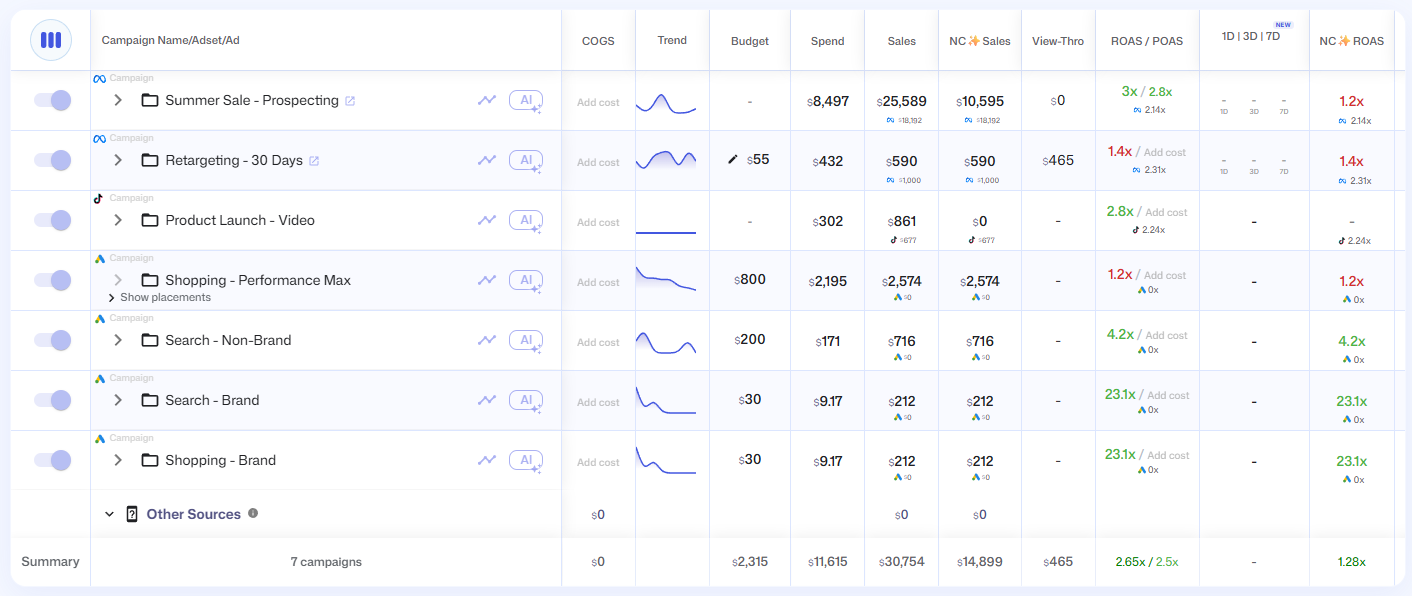
Spend and delivery
These come from the ad platform.
| Column | What it shows |
|---|---|
| Budget | The daily budget set in the ad platform. Ad rows leave this cell empty. How TikTok budgets are shown is explained in How do Google, TikTok, Pinterest and Snapchat campaigns differ in the Ads Manager?. To change a budget, see How do I pause an ad or change a daily budget from the Ads Manager? |
| Spend | What the platform charged in your date range. |
| Impressions | How many times your ads were shown. |
| Reach | How many different people saw your ads. |
| Frequency | The average number of times each person saw your ad. Meta only. |
| Clicks | All clicks on the ad. |
| Inline Clicks | Clicks on links in the ad. Meta only. |
| CTR | The share of impressions that led to a click, as a percentage. |
| CPC | Spend divided by clicks. |
| CPLC | Spend divided by unique outbound link clicks. Meta only. |
| CPM | Spend per 1,000 impressions. |
| ATC | Add to cart events the platform counted. |
| Lead | Leads the platform counted. |
| Compl. Reg. | Completed registrations the platform counted. |
Sales and return
These are tracked by TrueROAS unless the row says otherwise.
| Column | What it shows |
|---|---|
| Sales | Revenue from the orders TrueROAS gave to this row. |
| Conversion | The number of those orders. |
| Assist | Orders where this ad was clicked along the way but another ad got the sale. |
| AOV | Average order value. Sales divided by Conversion, rounded to a whole number. |
| ROAS / POAS | Two numbers in one cell. ROAS is Sales divided by Spend. POAS is profit on ad spend, which is Sales minus your order costs, divided by Spend. A POAS above 1 means the ads paid for themselves after costs. |
| 1D | 3D | 7D | ROAS for the last 1, 3 and 7 days, so you can see where a campaign is heading. Meta only. The three windows end yesterday, or today when Include today in date ranges is ticked in the date picker, whatever date range you pick. A window shows - when the row had no Meta spend in it, and 0x when it had spend but no sales. When your date range ends before the windows do, sales after its last day can be left out, so a campaign that is still spending can show 0x. With View-Through on, view-through sales are added to each window in proportion to its spend. |
| True ROAS | A wider ROAS: the sales TrueROAS tracked, plus one tenth of assisted sales and one fifth of view-through sales, divided by Spend. On an ad set or ad whose assisted sales are higher than its own sales, one twentieth of assisted sales is added instead. It does not change with the View-Through switch. |
| CPA | Cost per purchase. Spend divided by Conversion, shown as a whole number. |
| Conv. Rate | Conversion divided by Clicks, as a percentage. |
| View-Thro | Sales that Meta reports from people who saw an ad, never clicked it, and bought within a day. Reported by Meta. See What does the View-Through switch do? |
| Discrepancy | Sales minus the sales the ad platform reports for the same row. A positive number means TrueROAS tracked more than the platform claims. The number is green when TrueROAS tracked more and red, with a minus sign, when it tracked less. On ad rows the cell background is tinted the same way. |
| Trend | A small chart of tracked sales per day in your date range. Hover over it to see each day's amount. It is a flat line when there are no sales to show. |
| Refunds | Refunded amount on the orders this row won or assisted. Every ad that took part in an order counts its refund, so one refund can show on several rows. Which refunds reach this column is explained in Why don't my TrueROAS numbers match Meta or Shopify?. With Subtract refunds from sales on, the refunds on the orders this row won are already taken off Sales. See Can TrueROAS take refunds off my sales?. |
New customers
A new customer is someone placing their first order with your store. The columns marked NC only count those orders.
| Column | What it shows |
|---|---|
| New Customers | The number of first-time orders, with their share of the row's conversions under it. On a campaign row, hover over the share to read Share of this row's conversions that came from new customers. Ad sets and ads without new customers show - instead of 0. |
| NC Sales | Revenue from first-time orders. |
| NC ROAS | NC Sales divided by Spend. Hover over it to see ncROAS (total value from new customers) and the NC Sales amount. |
| NC CPA | Spend divided by New Customers, shown as a whole number. |
Costs and profit
| Column | What it shows |
|---|---|
| COGS | What the orders in this row cost you before ad spend: product costs, handling fees, your own shipping cost and payment processing fees, as set up in Cost Manager. Shipping paid by the customer is not included. |
| Profit | Sales minus COGS minus Spend. |
COGS, Profit and POAS always use the same cost figure for a row, so they never disagree with each other. These columns need your costs, which you add under Cost Manager in the left menu. Until then COGS shows Add cost on rows with sales and - on rows without, and Profit only takes off ad spend. If you have set a default cost percentage or a break-even ROAS but no product costs, the figure is an estimate marked est. See What do the colours and the small numbers under a value mean?.
To enter your costs, see How do I add my product costs in Cost Manager? and How do I import product costs from Shopify or a spreadsheet?. How an estimate is worked out is explained in How do I set my break-even ROAS and use it instead of product costs?.
Lead columns
For stores that collect leads instead of, or next to, orders. TrueROAS counts these itself.
| Column | What it shows |
|---|---|
| trueLeads | Leads tracked by TrueROAS. On Shopify and WooCommerce stores this column is named trATC. |
| trueCalls | Leads that reached the call stage. |
| truePurchases | Leads that became a purchase. |
| trueQualified | Leads marked as qualified. |
| CPL | Spend divided by tracked leads. |
| CPTC | Spend divided by tracked calls. |
| CPTP | Spend divided by tracked purchases. |
Names in Customize Columns
The Customize Columns window lists some columns under a different name than the table header.
| In Customize Columns | In the table |
|---|---|
| Value Per Day | Trend |
| Revenue | Sales |
| New Revenue | NC Sales |
| View Through | View-Thro |
| Roas | ROAS / POAS |
| Roas Trend | 1D | 3D | 7D |
| New Roas | NC ROAS |
| Purchase | Conversion |
| Net Profit | Profit |
| Cpp | CPA |
| New Cpp | NC CPA |
| True Vs Meta | Discrepancy |
| Inline Link Clicks | Inline Clicks |
| Conversion Rate | Conv. Rate |
| Complete Registration | Compl. Reg. |
| True Roas | True ROAS |
| Cogs | COGS |
| Aov | AOV |
| Atc | ATC |
| True Lead Count (True ATC Count on Shopify and WooCommerce stores) | trueLeads (trATC) |
| True Calls | trueCalls |
| True Purchases | truePurchases |
| True Qualified | trueQualified |
| Cost Per True Lead Count (Cost Per True ATC Count on Shopify and WooCommerce stores) | CPL |
| Cost Per True Calls | CPTC |
| Cost Per True Purchases | CPTP |
To add, remove or reorder columns, see How do I choose and reorder the columns?.
Good to know
- A - in a cell means there is nothing to show, for example a Meta-only column on a Google campaign, or a ratio with no spend.
- COGS and 1D | 3D | 7D always stay in the table. See How do I choose and reorder the columns?.
- Turning on View-Through or Incremental Attribution changes Sales, Conversion and every ratio built on them. See What is Incremental Attribution and how does it work?.
- The rows under Organic & Unassigned have no spend, so their spend, click and ratio columns are empty. See What is Organic & Unassigned and what do its rows mean?.
- The Summary row works out its ratios from the totals, not by averaging the rows. See What does the Summary row at the bottom of the table add up?.
- Most TrueROAS numbers, True ROAS included, list the orders behind them when you click them. See How do I see the orders and customer journey behind a campaign?.
- If True ROAS is missing from your table, see How do I choose and reorder the columns?. Sorting by True ROAS ranks rows by sales plus a third of assisted sales, divided by Spend, so the order can differ from the numbers shown.
- Some header tooltips do not match their column. The Profit tooltip says cost minus revenue, but the cell is Sales minus COGS minus Spend. The Assist tooltip speaks of the most clicked assisting ad, but every ad that assisted an order counts it. The Conversion tooltip speaks of the last clicked ad, but the ad that gets the sale follows your attribution model. The Discrepancy tooltip mentions Meta, but the column works the same for every ad platform.
- You cannot create your own column or change how a column is calculated.