
What does a channel's page on the Dashboard show?
Click Meta Ads, Google Ads or TikTok Ads on the Dashboard to see that channel's cards, its campaigns and, for Meta, its top creatives.
Open a channel's page
On the Overview of the Dashboard, click Meta Ads, Google Ads or TikTok Ads in the Channels table. A channel name that opens a page is blue, with a small arrow after it. You can also pick the channel in the All channels menu next to Compare to. The menu only lists the channels your store has: the ones you connected and the ones with sales or ad spend in your dates.
The page opens on the Dashboard for the dates you picked. The trail at the top shows Overview and the channel's name. Click Back or Overview to go back, or pick another channel in the menu to switch without going back. How these pages work in general is explained in What is the new Overview on my Dashboard?.
From top to bottom
- The channel's own cards, the cards of your store's Meta, Google or Tiktok dashboard from the old look. See Which cards are on the standard Summary, Meta, Google and Tiktok dashboards? and What do the Meta, Google and TikTok cards mean?.
- Campaigns, the channel's campaigns for your dates, described below.
- On the Meta page only, Top Creatives. See What do the Meta, Google and TikTok cards mean?.
- On the Meta and Google pages, New and returning customers by campaign, described below.
- A row with Every campaign, ad set and ad. and the button More details on and the channel, for example More details on Meta Ads. Point at it to see Opens Ads Manager. Click it to open the Ads Manager on that channel, with Back to Meta Ads to come back.
The Campaigns list
The list has the columns Campaign, Spend, Sales, Orders, New customers, ROAS, CPA and AoV. It is always sorted by spend, highest first, and cannot be sorted another way.
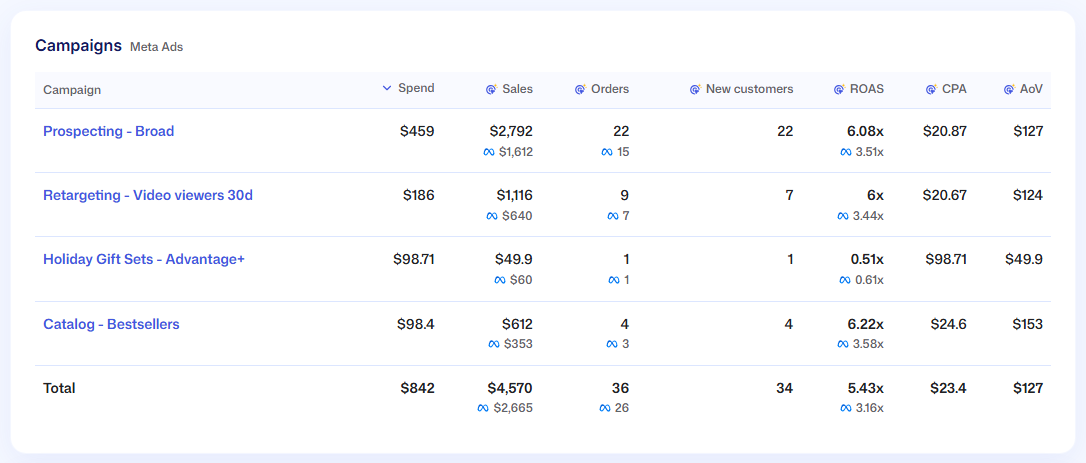
- Sales, Orders and ROAS show the TrueROAS number. Under it, a grey line with the ad platform's logo shows what the ad platform reports about itself. See Why don't my TrueROAS numbers match Meta or Shopify?.
- The first five campaigns show. Click Show all with the number of campaigns, for example Show all 12 campaigns, to see the rest.
- When there is more than one campaign, a Total row at the bottom adds up every campaign, also the ones not shown yet.
- Click a campaign name to go to the Ads Manager on that channel, in most stores straight to that campaign.
- Only campaigns with spend, sales or orders in your dates are listed. Your saved campaign filters from the Ads Manager apply here too. See How do Campaign Auto-Filters work?.
The list can show one of these lines instead:
- Campaigns could not be loaded. with Try again and Open Ads Manager.
- Your saved campaign filters hide every campaign here. with Open Ads Manager.
- No campaigns with spend or sales in these dates.
- Still loading. Large ad accounts can take a while. when the list takes more than 10 seconds.
- With Incremental Attribution switched on, the list is replaced by Incremental Attribution is on. See this channel's campaigns in Ads Manager, where it is applied to each campaign. with Open Ads Manager. See What is Incremental Attribution and how does it work?.
New and returning customers by campaign
This card shows, for the five campaigns with the most sales, how much came from first orders and how much from customers who ordered before. Each campaign gets one bar split into New customers and Returning customers, with the share of new sales at the end, for example 64% new, and both amounts under it. Point at a part of the bar to see its amount.
Good to know
- The pages exist for Meta Ads, Google Ads and TikTok Ads only. Other channels in the Channels table do not open a page.
- The TikTok page has no New customers column and no New and returning customers by campaign card, because TrueROAS has no new customer numbers for TikTok campaigns.
- When the channel is not connected, for example when it only shows because of sales in your dates, the Campaigns list and the cards under it are left out.
- On a phone the Campaigns list keeps only Spend, Sales and ROAS. See How do I use the Dashboard on my phone?.
- The AI summary and the Dashboard's icons are not shown on a channel's page. Go back to the Overview to use them.
- On a shared link a channel's page shows the channel's cards only, without Campaigns and without the More details on button.
- The page is part of the new look. In the old look, use the Meta, Google and Tiktok tabs.