
DocsReports
What do the ready-made reports show?
Trew can write three ready-made reports for you, on your best and tired ads, what your paid visits are worth and where ad money goes to waste.
Make a ready-made report
- Open Reports and click New Report.
- Under Ready-made, click Creative report, Traffic value report or Ad waste report.
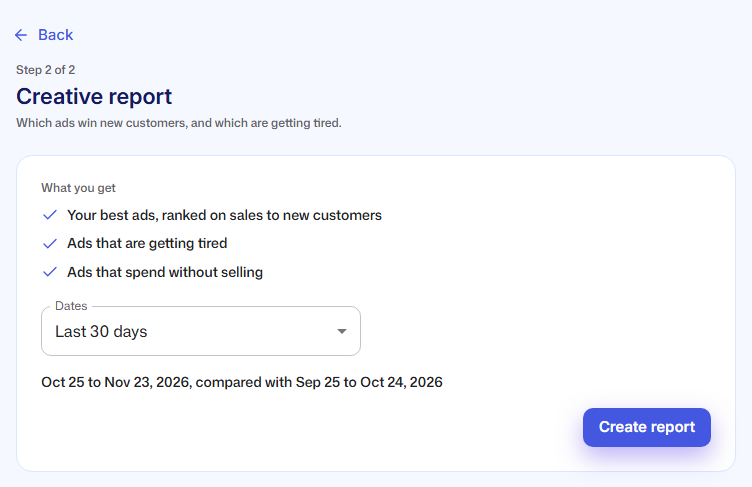
- Read What you get to see what the report covers.
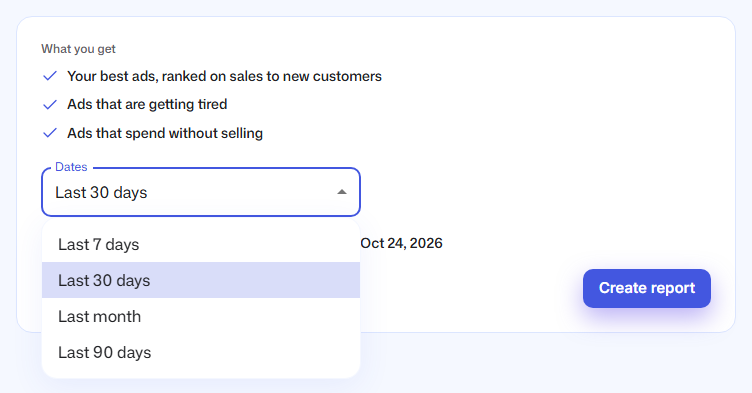
- Under Dates, pick a period. Last 30 days is picked to start with.
- Check the line under it. It spells out the exact days and the days they are compared with, for example "Oct 13 to Nov 11, 2026, compared with Sep 13 to Oct 12, 2026".
- Click Create report.
Trew, the AI assistant in TrueROAS, starts writing. The page says Your report shows up here when it is written. When Trew is done, the report opens with Trew beside it, so you can ask for changes. See How do I change, save or copy a report written with Trew?.
The three reports
| Report | The question it answers | What you get |
|---|---|---|
| Creative report | Which ads win new customers, and which are getting tired. | Your best ads, ranked on sales to new customers. Ads that are getting tired. Ads that spend without selling. |
| Traffic value report | What your paid visits are worth, per channel. | What a visit is worth from each channel. Which channels send visitors who add to cart. Where paid visits rarely turn into orders. |
| Ad waste report | Spend that buys clicks but no carts or orders. | Campaigns that spend with almost no carts or orders. How much of Meta's sales came without a click. The biggest saving to make first. |
The Creative report looks at your Meta ads. The Traffic value report reads visits and add to carts per channel from Google Analytics, and orders from your store.
The dates
| Choice | Covers | Compared with |
|---|---|---|
| Last 7 days | The 7 days that end yesterday | The 7 days before that |
| Last 30 days | The 30 days that end yesterday | The 30 days before that |
| Last month | Last calendar month | The month before it |
| Last 90 days | The 90 days that end yesterday | The 90 days before that |
Yesterday is counted in your store's time zone, so the days match your Dashboard.
Good to know
- A new report is a draft until you click Save. Everyone on the store can see it on the Reports page, but only you can change it.
- When Trew cannot fetch a number, the report says that number was not checked instead of guessing.
- You cannot pick your own start and end dates here. For other dates, or for a report on something else, see How do I ask Trew to write a custom report?.
- Back at the top takes you to the list of report choices without making a report.
- The Shopify, Meta Ads, Google Ads, Weekly summary and Spend changes reports are made another way. See How do I create a new report?.