
How do I create a new ad with Trew?
Give Trew an image or video from your ad account or by link, and it builds a new ad on Meta or Google that starts paused.
How it works
You give Trew the image or video for the ad and tell it what you want, for example "a new ad in my prospecting ad set with this video". Trew answers with a plan card that shows the new ad. If you are the store owner or an account admin, Trew creates the ad right away. A plan from the planner waits on its card until you approve it. Either way, everything new starts paused.
There are two ways to give Trew a creative: pick one that is already in your ad account, or add a link to the file.
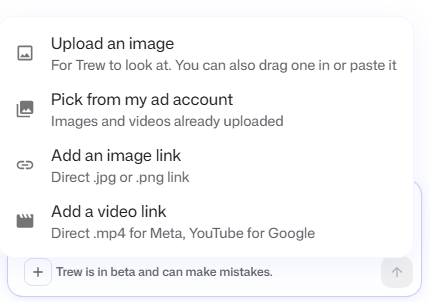
Pick a creative from your ad account
- In the Trew chat, click the plus button next to the chat box. Its tooltip reads Add an image for Trew to look at, or a creative for a new ad.
- Click Pick from my ad account (Images and videos already uploaded). Trew looks up the images and videos in your ad accounts.
- A card called Creatives in your ad account shows them as tiles. To see only one kind, click Images or Videos at the top. The number after each filter, for example Images 8, shows how many there are. All shows everything.
- Click the images or videos you want to use. A tick marks each one you picked. Click again to unpick.
- Click Use 2 selected. The number is how many you picked.
Trew then builds the plan around what you chose. Tell it in the chat which campaign or ad set the ad goes in, and the text you want, if it does not ask.
Use an image or video link
- Click the plus button next to the chat box.
- Click Add an image link (Direct .jpg or .png link) or Add a video link (Direct .mp4 for Meta, YouTube for Google).
- Paste the link and click Add link. A link that does not start with https:// or http:// shows A link starts with https://.
- The link goes into the chat box with the line Use this for a new ad. Add what you want the ad to be, and send.
Under your message, a preview shows the file and where it can be used:
- Usable on Meta and Google
- Usable on Meta
- Usable on Google
- Not usable as an ad file
When the link opens a web page instead of the file itself, the preview says That link is a web page, not a video or image file. Paste the direct file link.
Check the new ad on the plan card
The plan card shows the new ad:
- For a Meta ad, How the new ad will look in the feed shows a preview of the post. Click Show Meta's own render to see the preview Meta makes itself, and Hide Meta's own render to close it again.
- For a Google search ad, Preview, Google Search shows how the ad reads in the search results.
When the card waits for you, click Approve once it looks right. What each status on the card means is in What do the statuses on a Trew plan card mean?.
Good to know
- New campaigns, ad sets and ads always start paused, so nothing spends until you turn them on. You can ask Trew to turn them on.
- Upload an image in the same menu is for Trew to look at, for example a screenshot of an ad you like. To use a file in an ad, pick it from your ad account or add it as a link.
- A Google video ad needs a YouTube link. A .mp4 file works on Meta only.
- The link must point to the file itself. A share page that shows the file, for example in a cloud drive, is a web page and does not work.
- Only the store owner or an account admin can create ads with Trew. Team members can ask Trew about the numbers.
- Trew creates ads on Meta and Google only, not on TikTok or other ad platforms.
- To create ads from your own AI tool instead, read Can Claude or ChatGPT change my ads?.