
What is on the Website page and how do I connect it?
The Website page shows how visitors from each source behave on your site, using Google Analytics, Google Search Console and your orders.
Open the Website page
Open Analysis in the left menu and choose Website. The page starts with How visitors from each source behave on your site and a line that names where the numbers come from: Google Analytics (with the name of your property), Google Search Console and your orders.
Pick your dates with the date picker next to that line. Every change on the page compares your dates with the previous period of the same length, just before them.

The three tabs
- Traffic quality: which sources and campaigns send visitors who stay, add to cart and buy. See How do I read the Traffic quality tab?
- Landing page performance: where visitors drop off between landing and buying, and which pages, devices and products lose them. See How do I read the Landing page performance tab?
- Search and AI: your free Google clicks, brand searches against your ads, and visits from AI tools. See What does the Search and AI tab show?
The page opens on Traffic quality when Google Analytics has visits for your dates, and on Search and AI when it does not. The tab you pick stays open when you change the dates.
A tab can start with a card of findings, and a number on a tab counts its problems. See What does What stands out in these dates mean?
Traffic quality and Landing page performance come from Google Analytics. They show visits, counts and rates, never revenue.
Connect Google Analytics
Until Google Analytics is connected, Traffic quality and Landing page performance show Connect Google Analytics with a What you will see list: Traffic quality, Where visitors drop off and Landing pages.
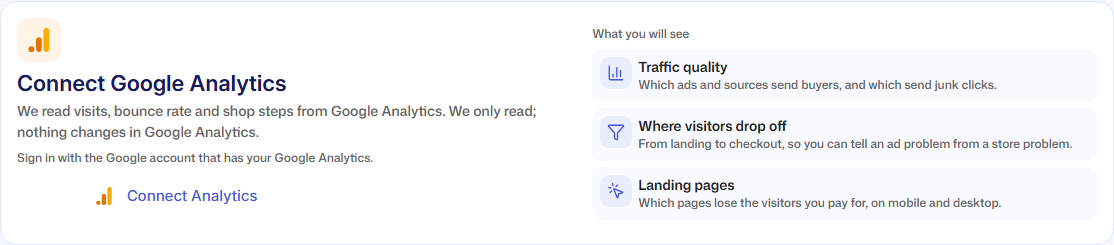
- Open Traffic quality and click Connect Analytics.
- Sign in with the Google account that has your Google Analytics and allow access.
- The card now reads Choose the Google Analytics property for this store. Click Choose property.
- In Choose a Google Analytics property, pick the property that tracks your store's website and click Save for everyone (or Save for me if you are not the store owner or an admin).
The tabs then fill with numbers for your dates. TrueROAS only reads from Google Analytics; nothing changes there. If someone on your store already chose a property, the tabs show numbers without these steps.
To switch to another property later, see Switch to another property.
When a tab shows a message instead of numbers
- Google Analytics stopped giving us access. Click the button next to it. Most people see Connect Google again. A team member who uses the owner's Google login sees Use my Google account, which connects their own Google login for them only.
- We couldn't load Google Analytics right now. Click Try again.
- Google Analytics has no visits for these dates. Pick other dates or check that your site sends data to Google Analytics. Choose other dates, or check in Google Analytics that the property gets visits from your site.
Reading the tables
- Click a column header to sort by it, highest first. Click it again to flip the order. The first column, such as Source or Landing page, can't be sorted, and neither can the text columns on Search and AI.
- A table shows its first 15 rows, or 5 on the Search and AI cards. Click Show all with the count to see the rest and Show fewer to fold them away.
- On a narrow screen, scroll sideways inside a table. The first column stays in place.
When the numbers update
The page shows your last saved numbers at once and loads newer ones in the background. Updating... shows next to the dates while that happens. If it fails, the line reads Couldn't update. Showing numbers from and the time of the numbers you see.
Search and AI says when its numbers were last updated, for example Updated 12 min ago.
Good to know
- The numbers come from Google Analytics and Google Search Console, not from TrueROAS tracking, so visits and conversion rates do not match your Dashboard.
- The property chosen with Save for everyone is used by everyone on the store. Save for me sets it for your login only.
- You can't export or download the tables on this page.
- On a phone, the short notes under source names are hidden to save space.