
What do the pages behind the small Dashboard cards show?
Open on a small Dashboard card shows a page about your orders, costs, journeys, website, products or creatives, with four numbers and a few cards.
Open a page
On the Overview of the Dashboard, the row The rest of your store holds small cards. Click Open on a card, or anywhere on the card, to open its page on the Dashboard. The page uses the dates you picked.
Every page starts with four numbers and is followed by a few cards. At the top, the trail shows Overview and the page name; click Back or Overview to go back. At the bottom, a button More details on and the page name opens the full page in TrueROAS. How these pages work in general is explained in What is the new Overview on my Dashboard?.
A small card only shows when it has something to show, so your store may have fewer of these pages. Why a card can be missing, and what the LTV page shows (also opened by New vs returning), is explained in What is the new Overview on my Dashboard?.
Orders
- Numbers: Orders, Sales, Average order and New customer share, the share of orders that were a customer's first order.
- Newest orders: the ten latest orders in your dates, with Order, Time, Last visit from, Customer (new or returning) and Value.
- Orders per day: a line of your orders. For long date ranges it counts a week at a time.
- Orders by channel: how many orders each channel is credited with, and their share.
- More details on Orders opens Order Flow. See What is Order Flow and what can I do there?.
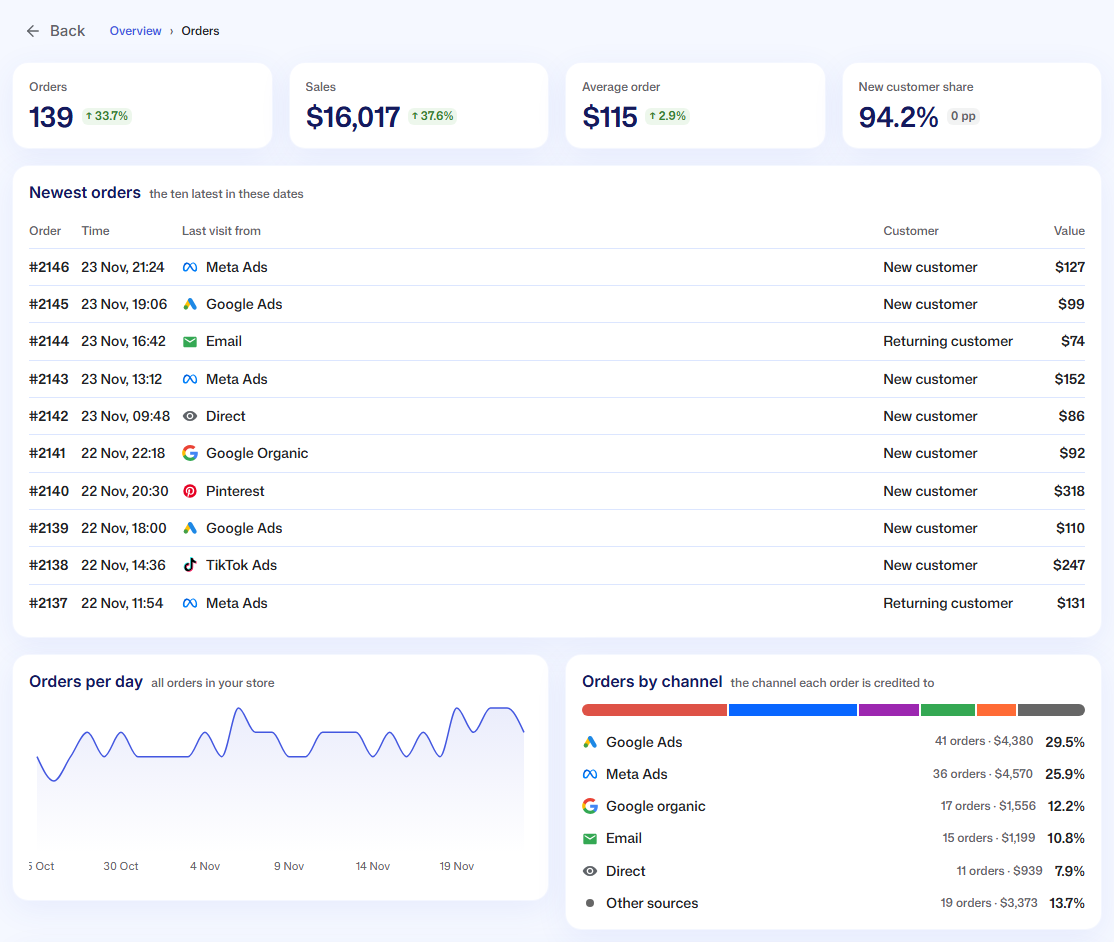
If the list cannot load, you see We could not load your newest orders. with Try again. With no orders yet, it says No orders in these dates yet. Each new order shows here as it comes in.
Costs
- Numbers: Ad spend, Order costs (product costs, shipping, handling and payment fees), Custom costs and Left after all costs, your sales minus all three.
- ROAS against break-even: each ad channel's ROAS next to your break-even ROAS, with channels below it in red. A channel with less than 3% of your ad spend is left out, and a line under the card names it.
- One average order (where the money goes): one average order split into Order costs, Ad spend, Custom costs and what is Left.
- Cost breakdown: the same card as on the Summary dashboard. See What do the cards on the Summary dashboard mean?.
- More details on Costs opens Cost Manager. See How do I add my product costs in Cost Manager?.
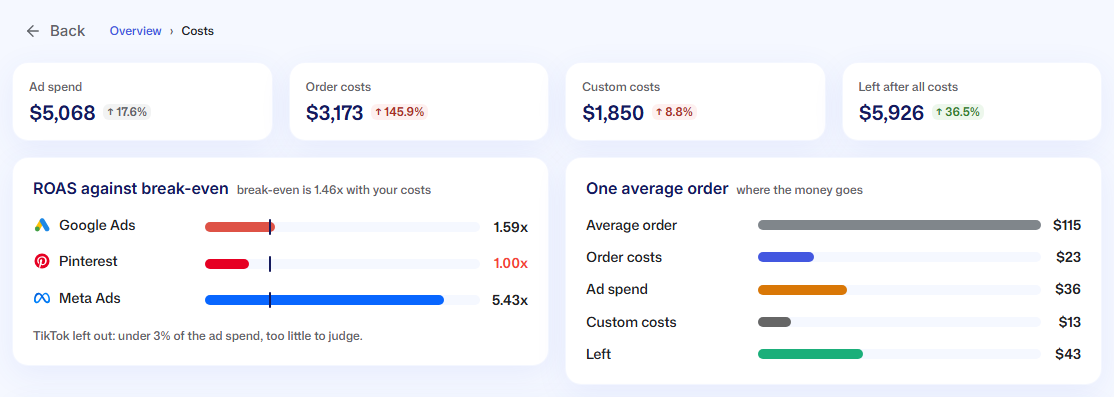
When your product costs are an estimate, you see Your product costs are estimated. with the link Add them in Cost Manager, and the amounts that rest on them start with "about". Without product costs, the page says Add your product costs in Cost Manager to see your break-even ROAS and what is left after all costs. with Open Cost Manager. With no sales in your dates, it says No sales in these dates, so there is nothing to split into costs yet.
Journeys
- Numbers: Orders, Sales, Average order and Days to buy, the average days from a customer's first visit to the order. An order on the day of the first visit reads Same day.
- Common paths to an order: the most common chains of channels before an order, with the number of orders.
- Who starts and who closes: per source, how many orders it started with the first visit and closed with the last visit.
- Time to buy: the share of orders by time from first visit to order.
- Channels before the order: the share of orders each channel was part of.
- More details on Customer journeys opens Customer Journeys. See What is Customer Journeys and what can I do there?.
For a big store the page first says This takes a while for a store of your size. Click Show it to load it. If it cannot load, you see We could not load your customer journeys. with Try again.
Website
- Numbers: Visits, Visits that ended in an order (your orders divided by your visits), Bounce rate and Orders. A line under them says Visits from Google Analytics.
- Which traffic is worth paying for: visits, bounce rate and conversion rate per source.
- Visits by source: visits per source as bars.
- Where visitors land: the landing pages with the most visits.
- Phone or desktop: the share of visits per device.
- More details on Website opens the full Website page.
When Google Analytics has no visits for your dates, the page says Google Analytics has no visits for these dates. Pick other dates or check that your site sends data to Google Analytics. When TrueROAS can no longer read Google Analytics, it says Google Analytics stopped giving us access. with a button to connect Google again. When Google Analytics does not answer, it says We couldn't load Google Analytics right now. with Try again.
Products
- Numbers: Products sold, Product sales, Best seller and Top product share.
- Best and worst sellers: products by sales, with Sales and Sold.
- What sold it: per product, its sales and its Top source.
- More details on Products opens Product Attribution. See What is Product Attribution and what can I do there?.
When TrueROAS has sorted your products into kinds, a switch Product / Product kind appears at the top. Product kind shows Sales by product kind, with each kind's sales and share. Products it is not sure about are listed as Not sorted yet. This card always covers the last 30 days, not the dates you picked.
For a big store the page first says This takes a while for a store of your size. Click Show it to load it. If it cannot load, you see Could not load your product sales. with Try again.
Creatives
The page shows your Meta ads.
- Numbers: Creatives running, Make a profit (how many ads made a profit, out of all), Spend on the top 3 and Sales from ads. Without product costs, Make a profit is replaced by Beat their spend.
- Top creatives: your best ads by sales, as pictures.
- By format: spend, sales and ROAS by ad format, next to the lines New in these dates, Spend with no sales and Running more than 60 days. See What is the new Overview on my Dashboard?.
- Best and worst ads: the ads with the most and least profit, or sales minus spend without product costs, with Open Ads Manager.
- Spend with the least back: the four ads with the lowest ROAS, with Open Ads Manager.
- More details on Creatives opens Creative Lab. See What is Creative Lab and what can I do there?.
Without Meta, the page says Connect Meta to see your ads here, with their pictures, sales and ROAS. If your ads cannot load, you see Could not load your ads. with Try again.
Good to know
- The pages never open on a shared link, and the row The rest of your store is not shown there.
- The AI summary and the Dashboard's icons are not shown on these pages. Go back to the Overview to use them.
- A page leaves out a card when your data cannot fill it.
- The demo opens every page with made-up numbers.
- On a phone the small cards go one per row. See How do I use the Dashboard on my phone?.